Introduction
Every podcaster, YouTuber, and content creator eventually hits the same wall: you’ve got hours of long-form footage sitting on a hard drive, you know there are five or six genuinely shareable moments buried inside it, and you don’t have the time to scrub through and cut them yourself. Opus Clip was built specifically to solve that problem, and it’s become the name most people reach for first when they start researching AI video clipping tools.
If you’re weighing Opus Clip against manually editing your own clips, or comparing it to competitors like Descript, Vizard, or CapCut, this guide covers what the tool actually does, what it costs in 2026, where it genuinely saves time, and what I’ve learned from using it on real long-form content.
What Is Opus Clip?
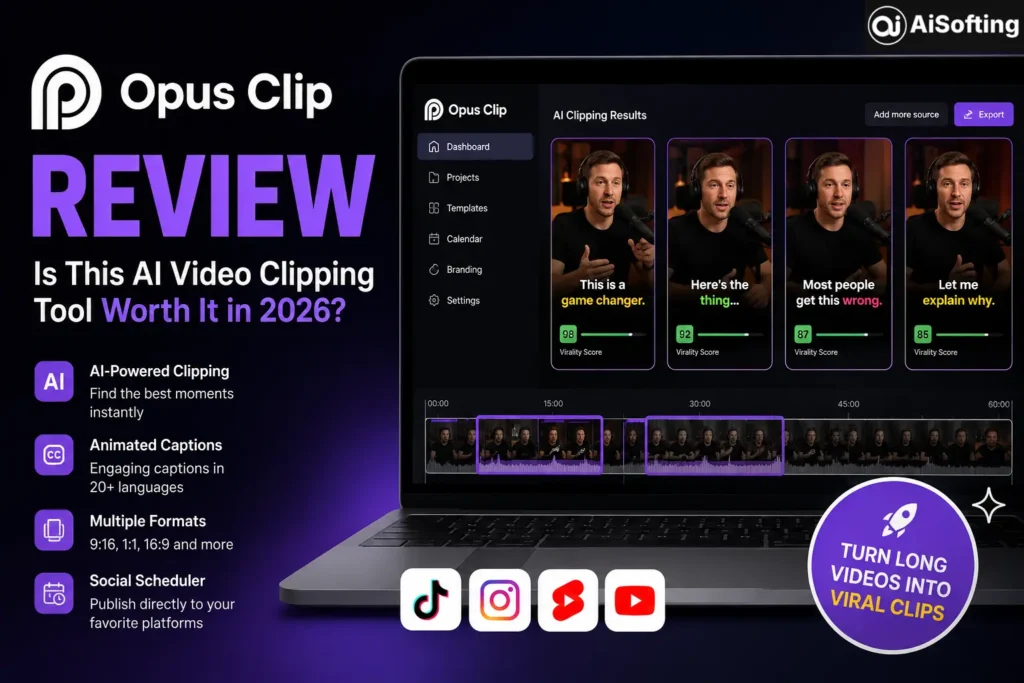
Opus Clip is an AI-powered video repurposing platform that turns long-form video — podcasts, YouTube videos, livestreams, webinars — into short, social-ready clips for platforms like TikTok, Instagram Reels, and YouTube Shorts. You paste a video link or upload a file, and the AI analyzes the footage to identify clip-worthy moments, reframes the footage for vertical or square formats, adds animated captions, and helps you publish directly to social platforms.
The company has real financial backing behind it, having raised around $50 million, including a 2025 investment from SoftBank Vision Fund 2, at a reported $215 million valuation — figures that reflect its position as the current market leader in AI video repurposing by both funding and name recognition, with more than 10 million users to date.
How the Clipping Process Actually Works
Under the hood, Opus Clip uses a proprietary AI model, powered by GPT-4, to analyze your source video and identify moments worth turning into standalone clips. The whole process typically takes 2-5 minutes per video, and you’ll usually get somewhere between 5 and 15 clips out of a single long-form upload, depending on length and content density.
The Virality Score Feature
One feature that consistently gets singled out as genuinely useful across reviews is Opus Clip’s Virality Score system, which analyzes hooks, pacing, and topic shifts within your video to help you prioritize which generated clips are most likely to perform well, rather than leaving you to guess which of 10-15 options is actually worth posting first.
Opus Clip Pricing in 2026
Pricing has stayed fairly consistent across the sources tracking it this year, though it’s always worth checking Opus Clip’s official pricing page directly, since credit allowances and tiers can shift.
- Free plan: A permanent free tier requiring no credit card, offering 60 processing minutes per month, AI captions, one brand template, and 9:16 exports. The catch: exports carry an Opus Clip watermark, clips expire after just 3 days, and you don’t get access to the full editor or Virality Score features.
- Starter: $15/month, with 150 processing credits, no watermark, animated captions in 20+ languages, and one brand template. Worth noting: Starter is month-to-month only, with no annual discount option, and it doesn’t include the social scheduler.
- Pro: $29/month (or $174/year on annual billing), with 300 processing minutes, all aspect ratios including 1:1 and 16:9, up to 50 AI B-roll clips per day, a 2-seat team workspace, and social scheduling. Reviewers consistently point to Pro as the tier where Opus Clip stops feeling feature-limited and starts functioning as a complete production tool.
- Business: Custom pricing for larger teams, negotiated directly with Opus Clip.
The Credit System Is Worth Understanding Before You Commit
Opus Clip charges based on source video length, not output clips — upload a 30-minute podcast, and that’s 30 credits used, regardless of whether you end up using 1 clip or 15 from it. It’s also worth knowing that your subscription and credits work together rather than independently: once a subscription ends, previously processed projects can disappear even if you’d already paid for the credits that created them, according to user feedback on review platforms like Trustpilot.
Real-World Use Cases
- Podcasters repurposing full episodes — turning a 60-minute conversation into multiple short clips for TikTok and Reels without manually scrubbing through the whole recording.
- YouTubers cross-posting to short-form platforms — pulling highlight moments from long-form videos to drive traffic back to the full upload.
- Livestreamers and gaming creators — clipping standout reactions or moments from hours of stream footage that would otherwise never get repurposed.
- Marketing and media teams — turning webinars or panel discussions into a batch of shareable social clips as part of a broader content pipeline.
- Coaches and course creators — repurposing long training or coaching sessions into bite-sized, algorithm-friendly clips for audience growth.
Benefits of Using Opus Clip
- Genuine time savings — the 2-5 minute processing window for a full clip batch is meaningfully faster than manual editing for most creators.
- Strong brand recognition and polish — a well-regarded interface that a lot of reviewers note is genuinely pleasant to use, even relative to cheaper competitors.
- Virality Score adds real prioritization value — rather than guessing which of 10+ clips to post first, the scoring system gives you a data-informed starting point.
- Permanent free tier for testing — you can genuinely trial the core clipping experience before paying anything.
- Multi-platform export and captioning — built-in animated captions in 20+ languages and reframing for different aspect ratios removes several manual editing steps.
Common Mistakes and Limitations to Know
- Assuming every generated clip is publish-ready. Across consistent testing and user feedback, expect to discard somewhere between 20 and 40 percent of what gets generated, either because the AI picked a contextually incomplete moment or because caption alignment drifted slightly. Opus Clip is a first-pass tool, not a set-and-forget one.
- Not tracking the credit-per-minute cost as volume scales. Because pricing is based on source video length rather than output clips used, high-volume creators processing long source material can burn through a monthly allowance faster than expected — it’s worth calculating your actual per-minute cost before committing to a tier.
- Cancelling without downloading your work first. According to reviewers, the window to retrieve your projects after cancellation is short and not particularly forgiving, so download everything you need before ending a subscription.
- Ignoring the Starter-to-Pro feature gap. Several reviewers describe the jump between Starter and Pro as bigger than the pricing page makes obvious — Starter feels solid for clipping alone but thin for a full editing workflow, so it’s worth checking specifically whether Starter covers what you actually need before assuming a tier upgrade isn’t necessary.
- Not reading reviews on processing reliability. Opus Clip holds a 4.0 out of 5 rating on Trustpilot from over 300 reviews, but roughly 22% are 1-star, with recurring complaints about processing failures and cancellation difficulty — worth factoring in if reliability at scale matters for your workflow.
Best Practices for Getting the Most Out of Opus Clip
- Start on the free tier to genuinely test clip quality on your specific content style before committing to a paid plan.
- Budget time to review and lightly edit every generated clip rather than assuming AI output is publish-ready as-is.
- Calculate your actual cost-per-minute based on typical source video length, not just the advertised monthly price, especially if you’re a high-volume creator.
- Download and archive completed projects promptly, and don’t let them sit inside the platform past your subscription’s active period.
Personal Experience
I started using Opus Clip while helping a client repurpose a weekly hour-long podcast into short-form content, mostly because manually scrubbing through a full episode every week to find quotable moments was eating a disproportionate amount of our editing time. The onboarding was genuinely as fast as advertised — pasting in a video link and getting a batch of clips back within a few minutes felt like a real workflow improvement from day one.
Where my experience matched what I’d read in other reviews was clip quality variance. Out of a typical batch of ten clips, I’d usually find two or three that were genuinely ready to post as-is, a handful that needed minor trimming or a caption fix, and one or two that just didn’t make sense as standalone moments — usually because the AI had cut into the middle of a thought without enough setup. That roughly lines up with the 20-40% discard rate other reviewers report, and it changed how I planned my weekly workflow: I stopped expecting a fully automated pipeline and started treating Opus Clip as a strong first pass that still needed a genuine review step before anything went live.
The other lesson, which cost me a bit of frustration the first time it happened, was underestimating how the credit system worked. I’d assumed unused credits from a lighter month would roll over indefinitely, and instead found that once a subscription cycle ended, some previously processed projects were harder to access than expected. Since then, I’ve made it a habit to download and archive finished clips the same week they’re generated rather than letting them sit inside the platform, and I’d genuinely recommend that habit to anyone relying on the tool for ongoing content production.
FAQs
1. Is Opus Clip free to use? Yes, Opus Clip has a permanent free tier with 60 processing minutes per month and no credit card required, though exports include a watermark and clips expire after 3 days.
2. How much does Opus Clip cost per month? As of 2026, Starter is $15/month, Pro is $29/month (or $174/year billed annually), and Business is custom-priced for larger teams. Pricing can shift, so it’s worth checking Opus Clip’s official pricing page for current numbers.
3. Does Opus Clip guarantee my clips will go viral? No. The Virality Score feature analyzes hooks, pacing, and topic shifts to help prioritize which generated clips are most likely to perform well, but it’s a prioritization tool, not a guarantee of any specific outcome.
4. How many clips can I get from one video with Opus Clip? Typically between 5 and 15 clips from a single long-form video, depending on length and content density, with processing usually taking 2-5 minutes.
5. What happens to my projects if I cancel my Opus Clip subscription? Based on user reports, previously processed projects can become inaccessible relatively quickly after cancellation, so it’s strongly recommended to download and archive any clips you need before ending your subscription.
Conclusion
Opus Clip earned its position as the best-known name in AI video clipping for good reason — fast processing, a genuinely useful Virality Score feature, and a polished interface that reviewers consistently rate above cheaper competitors. It’s not a fully hands-off tool, though: expect to review and lightly edit a meaningful share of generated clips, and pay close attention to how the credit system and cancellation policy actually work before committing to a paid tier. For creators who publish consistently and want a faster first pass on repurposing long-form content, it’s a legitimately useful part of a content workflow rather than just another AI tool riding a trend.
Actionable takeaways:
- Test the free tier first to see how clip quality holds up on your specific content style.
- Budget real review and editing time for every batch of generated clips rather than expecting fully finished output.
- Calculate your actual cost-per-minute against your typical source video length before choosing a paid tier.
- Download and archive your projects regularly rather than letting them sit inside the platform indefinitely.
If you’re building out a broader content strategy around video repurposing tools like this, it helps to have the rest of your digital presence working just as hard — see how professional SEO strategy can help your repurposed content actually get discovered, and how professional web development services support a site built to convert that traffic once it arrives.
For further reading, see an independent comparison of AI video clipping tools from G2, Hootsuite’s guide to short-form video strategy for social platforms, and a general overview of AI-assisted video editing trends from TechCrunch.
Disclaimer: This article is for general informational purposes only and does not constitute professional or purchasing advice. Opus Clip’s features, pricing, and plan structures may change over time — always verify current details on Opus Clip’s official website before subscribing. This content is not affiliated with or endorsed by Opus Clip.