Introduction
If you’ve spent any time editing podcasts or videos, you already know the pain. You scrub through hours of footage, hunting for that one “um” or dead-air pause, and by the time you’re done, half your afternoon is gone. That’s the exact problem Descript was built to solve, and it’s why the tool has become a fixture in creator workflows over the past few years.
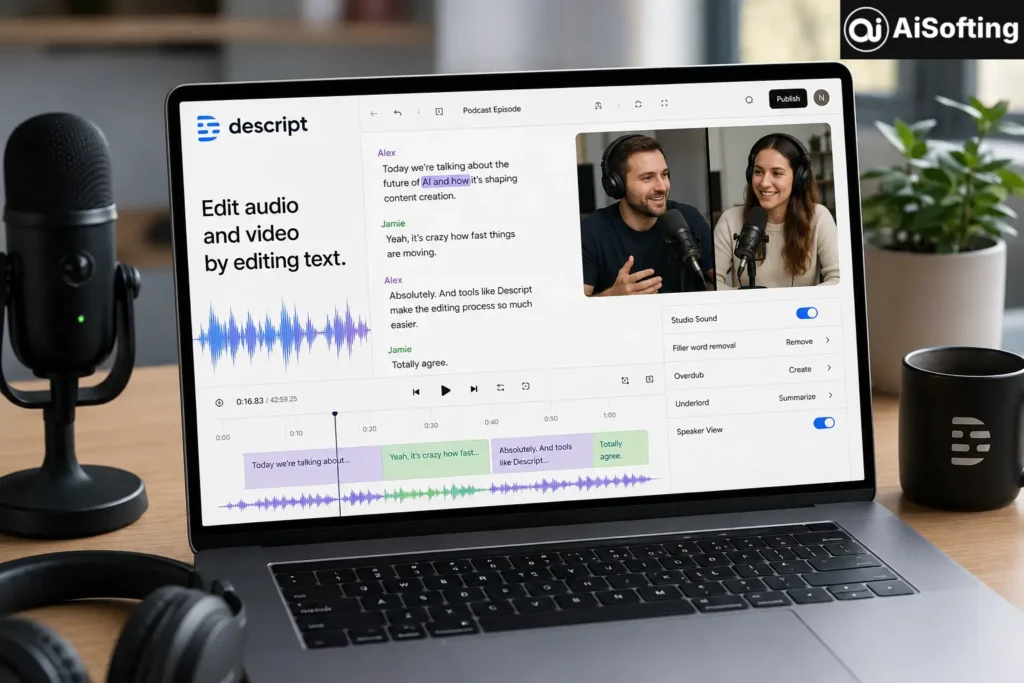
Descript is an AI-powered audio and video editing platform that lets you edit media the same way you’d edit a Word document — delete a word from the transcript, and the corresponding clip disappears from your timeline. No dragging clips around a timeline, no scrubbing back and forth trying to find the exact frame. For podcasters, YouTubers, course creators, and marketing teams, this “edit by text” approach has genuinely changed how editing gets done.
In this guide, I’ll walk through what Descript actually does well, where it falls short, how the pricing works in 2026, and what I’ve personally learned after using it across dozens of projects. This isn’t a marketing rundown — it’s a practical look at whether Descript deserves a spot in your toolkit.
What Is Descript, Exactly?
Descript is a browser-and-desktop application that combines several tools that used to require separate subscriptions:
- Transcription — automatically converts audio or video into an editable text document
- Text-based editing — cut, trim, and rearrange media by editing the transcript
- Studio Sound — AI-based audio cleanup that removes background noise and echo
- Overdub/Regenerate — a voice-cloning feature that lets you fix flubbed lines by typing corrected text
- Screen and remote recording — built-in tools for recording webcam, screen, or multi-person interviews
- Filler word removal — automatically strips “um,” “uh,” and long pauses
- Publishing tools — export to video, audio, or a shareable web page with an embedded player
The company was founded by Andrew Mason (a Groupon co-founder) and has grown into one of the more recognizable names in the AI editing space, competing with tools like Adobe Premiere Pro, CapCut, and Riverside.fm.
Key Features Worth Knowing About
Edit by Transcript
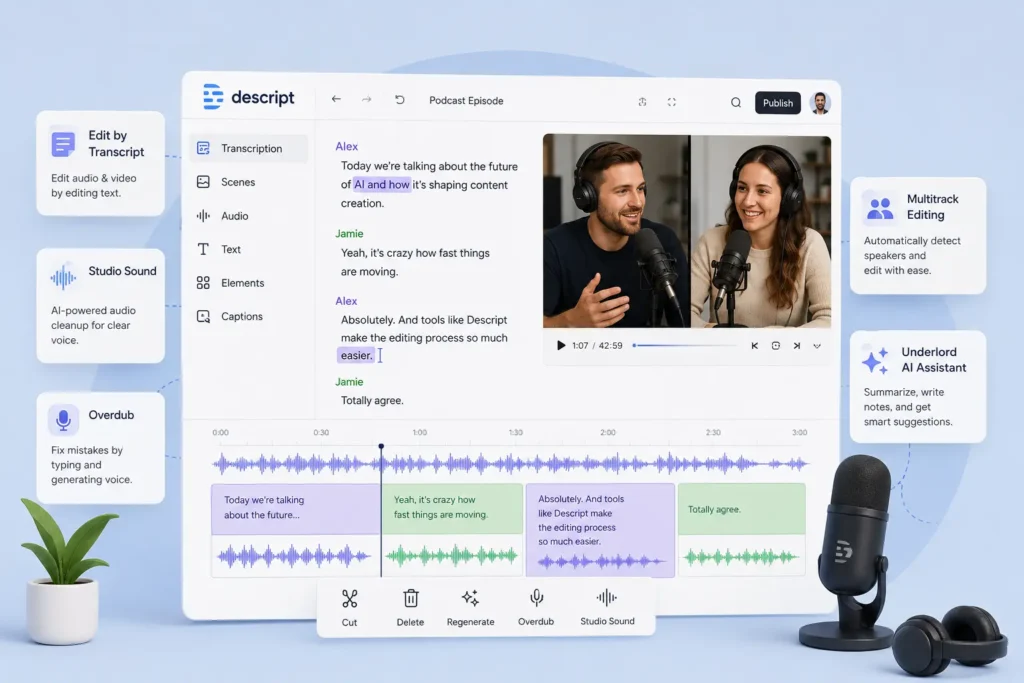
This is Descript’s signature feature, and it’s genuinely useful. Once your recording is transcribed, you edit the text — delete a sentence, and that chunk of audio or video vanishes from the timeline automatically. For interview-heavy content or long-form podcasts, this alone can cut editing time dramatically.
Studio Sound
Recorded in a noisy room or with a mediocre mic? Studio Sound uses AI to clean up background noise, hums, and echo. It won’t replace a proper studio setup, but for remote interviews recorded over Zoom or a laptop mic, it makes a noticeable difference.
Overdub and AI Voice Tools
Overdub lets you train a synthetic version of your own voice, so if you misspeak or need to fix a line, you can type the correction instead of re-recording. It’s one of the more talked-about features, though it does raise valid questions about disclosure and consent when voice cloning is involved — something to keep in mind for any commercial or journalistic use.
Multitrack and Speaker Detection
For podcasts with multiple speakers, Descript can automatically detect and label who’s talking, even across separate recorded tracks. This saves a lot of manual labeling time on interview-style shows.
Underlord (AI Assistant)
Descript’s built-in AI assistant, Underlord, can generate summaries, suggest edits, and help with tasks like writing show notes or captions directly inside the editor.
Descript Pricing in 2026
Descript’s pricing structure has shifted over the past year, moving from a simple “transcription hours” model to a system based on media minutes and AI credits. Here’s how the current tiers break down:
- Free — $0/month: Roughly 60 media minutes (about 1 hour), a one-time batch of AI credits, and exports capped at 720p with a watermark. Good for testing the editor, not for regular publishing.
- Hobbyist — $16/month billed annually (or $24/month billed monthly): Around 10 hours of media processing per month, watermark-free 1080p exports, and basic AI tools. Suited to solo creators with light, occasional output.
- Creator — $24/month billed annually (or $35/month billed monthly): About 30 hours of media processing, 4K export, and full access to AI features like Studio Sound and filler word removal. This is the realistic baseline for regular podcasters and YouTubers.
- Business — $50/month billed annually (or $65/month billed monthly): Roughly 30-40 hours of media processing, team collaboration tools, Brand Studio, and priority support — built for small video teams.
- Enterprise — Custom pricing: Adds SSO, dedicated account support, security review, and custom invoicing for larger organizations.
A few things worth knowing before you commit to a plan: annual billing saves you a meaningful chunk (often 30%+) compared to paying monthly, and the real constraint on most plans isn’t the number of seats — it’s the media-minutes cap. If you regularly record long-form interviews or upload multiple camera angles for one session, you can burn through your monthly allowance faster than expected. It’s worth sizing your plan around how much raw footage you process, not just how many people are on your team.
Benefits of Using Descript
- Speed — cutting a rough edit from a transcript is often faster than timeline scrubbing
- All-in-one workflow — recording, transcription, editing, and publishing live in one app instead of five subscriptions
- Beginner-friendly — the text-based approach is far more approachable for people without a traditional editing background
- Collaboration — teams can comment, review, and edit shared projects without exporting files back and forth
Common Mistakes People Make With Descript
- Underestimating media-minute usage. Uploading multiple camera angles or long raw recordings eats through your monthly allowance quickly.
- Skipping Studio Sound before final export. A lot of new users forget to clean audio early, then have to redo edits after applying noise reduction later.
- Over-relying on automatic transcription accuracy. Accents, overlapping speakers, and industry jargon can trip up the transcript, so always proofread before final export.
- Not backing up projects locally. Since editing happens in the cloud, it’s smart to periodically export or archive finished projects.
- Choosing a plan based on price alone. A cheaper tier with a low media-minutes cap can end up costing more once you factor in top-up purchases.
Best Practices for Getting the Most Out of Descript
- Record in as quiet an environment as possible — Studio Sound is good, but it isn’t magic
- Use filler-word removal as a first pass, then manually review the results
- Keep your vocabulary/pronunciation dictionary updated if you work with niche or technical terms
- Take advantage of keyboard shortcuts once you’re comfortable with the transcript-editing workflow
- If you’re on a team, set clear naming conventions for shared projects to avoid version confusion
Personal Experience: What I Learned After Months of Real Use
I started using Descript for a client’s weekly interview podcast, mostly because manually chasing down filler words in a traditional timeline editor was eating up entire afternoons. The transcript-based workflow was a genuine relief the first week — I could delete a rambling tangent in seconds instead of scrubbing back and forth trying to find the exact in and out points.
That said, a few things surprised me. First, transcription accuracy is good but not flawless, especially with guests who have strong accents or when two people talk over each other. I learned to always do a quick read-through pass before trusting the automatic cuts, because a mis-transcribed word can quietly delete a clip you actually wanted to keep.
Second, the media-minutes system caught me off guard the month I started recording multi-camera video instead of just audio. Each camera angle counted separately toward my monthly limit, so a single hour-long recording with two angles used up double the minutes I expected. If I’d known that going in, I would have picked a higher tier from the start instead of hitting the wall mid-month and scrambling for a top-up.
Third, Studio Sound genuinely saved a few episodes that were recorded on a guest’s laptop mic in an echo-y room. It’s not a substitute for good recording conditions, but as a rescue tool, it earned its keep.
My overall takeaway: Descript is worth it if your workflow actually uses the AI features — filler removal, Studio Sound, transcript editing — on a regular basis. If you only need basic trims and captions occasionally, the cost is harder to justify, and a lighter tool might serve you just as well.
Frequently Asked Questions
Is Descript free to use?
Yes, Descript offers a free plan that includes the full editor with around 60 media minutes per month. However, exports are watermarked and capped at 720p, so it works better as a trial than a long-term solution.
How accurate is Descript’s transcription?
It’s generally quite good for clear, single-speaker audio in supported languages, but accuracy can drop with heavy accents, background noise, or overlapping speakers. Always proofread before finalizing an edit.
Can Descript replace a traditional video editor like Premiere Pro?
For transcript-heavy content like podcasts, interviews, and talking-head videos, yes, in many cases. For complex motion graphics, color grading, or advanced visual effects, a dedicated tool like Adobe Premiere Pro or DaVinci Resolve still has the edge.
What is Overdub and is it safe to use?
Overdub is Descript’s voice-cloning feature that lets you regenerate corrected audio in your own trained voice. It’s useful for fixing small mistakes without a full re-record, but it’s good practice to disclose when synthetic voice has been used, particularly for journalistic or public-facing content.
Does Descript work for team collaboration?
Yes, the Business and Enterprise tiers include shared workspaces, commenting, and Brand Studio tools designed for teams producing content at scale.
What happens if I go over my monthly media minutes?
On Creator and Business plans, you can purchase additional media-minute and AI-credit top-ups, which typically expire 12 months after purchase.
Is Descript better than Otter.ai or Sonix for transcription?
Descript is built primarily as an editor with transcription as a core feature, while tools like Sonix and Otter.ai focus more narrowly on transcription accuracy and cost per hour. If editing is your main goal, Descript’s workflow has the edge; if you only need transcripts, a dedicated transcription tool may be cheaper.
Conclusion
Descript has earned its reputation as one of the more genuinely useful AI editing tools on the market, largely because the transcript-based editing workflow solves a real, everyday pain point for podcasters and video creators. It’s not perfect — the media-minutes pricing model takes some getting used to, and the AI transcription still needs a human proofreading pass — but for anyone who regularly edits spoken-word content, it can meaningfully cut down editing time.
Actionable takeaways:
- Start with the Free plan to test whether the transcript-editing workflow fits your style before paying for anything
- Size your subscription tier around your actual media-minute usage, not just team size
- Always proofread automatic transcripts and use Studio Sound as a rescue tool, not a substitute for good recording conditions
- Compare Descript against alternatives like Adobe Premiere Pro or Riverside.fm if your workflow leans more toward multi-camera video or remote interview recording
Visit: Aisofting
Disclaimer: This article is intended for general informational purposes only and reflects publicly available information and general observations about the Descript platform as of 2026. Pricing, features, and plan details are subject to change, so always verify current terms directly on the official Descript website before making a purchasing decision. This is not sponsored content, and any opinions expressed reflect general usage experience rather than a formal, controlled product review. Individual results and workflows may vary depending on your specific use case.