
Introduction
If you’ve ever used Microsoft Outlook for more than a few months, you’ve probably run into a PST file without even realizing it. Maybe Outlook threw an error saying your “data file has reached its maximum size,” or maybe you were trying to move your emails to a new computer and stumbled across a mysterious file ending in .pst. Either way, understanding what this file actually does — and how to manage it properly — can save you from corrupted mailboxes, missing emails, and hours of frustration.
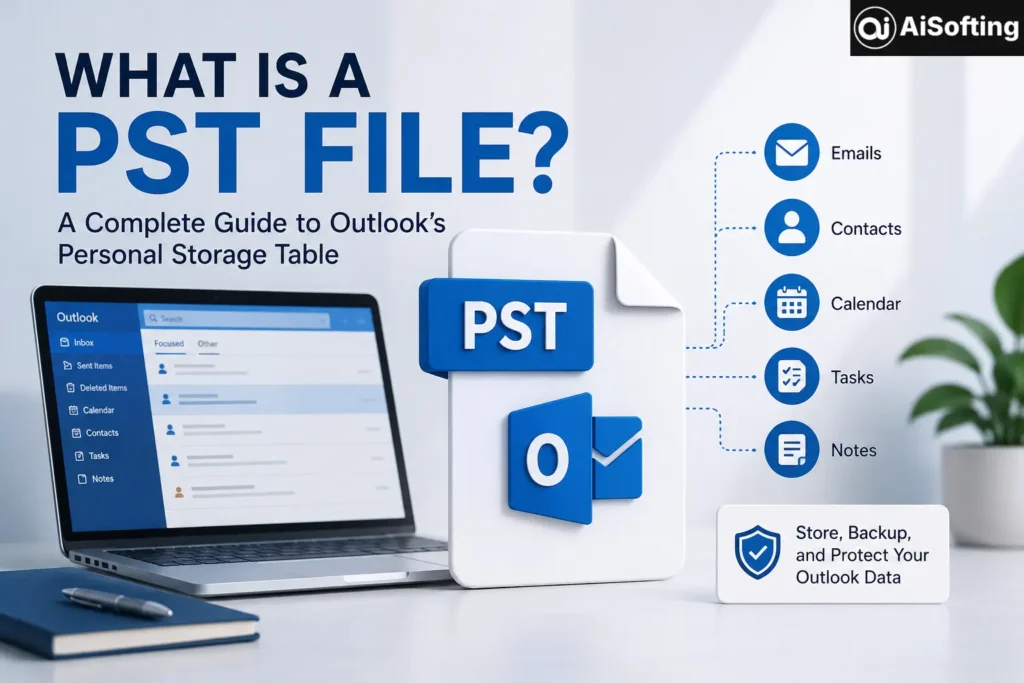
A PST file (Personal Storage Table) is essentially the local vault where Outlook keeps a copy of your emails, contacts, calendar entries, tasks, and notes. It’s been part of the Outlook ecosystem since the early days of Microsoft Office, and even in 2026, with cloud-first email becoming the norm, PST files are still very much alive — especially for anyone using POP3 accounts, archiving old mail, or migrating data between systems.
In this guide, we’ll break down what a PST file really is, how it differs from an OST file, common size limits, practical tips for managing one safely, mistakes to avoid, and answers to the questions people actually search for.
What Exactly Is a PST File?
A PST file is a proprietary Microsoft data format used to store a local, offline copy of Outlook mailbox data on your hard drive. Think of it as a personal filing cabinet that lives entirely on your computer rather than on a mail server.
PST files are created in two main scenarios:
- POP3 email accounts — since POP3 doesn’t sync with a server, all your mail is stored locally in a PST file by default.
- Manual Outlook Data Files — users can create a PST file to archive old emails, back up a mailbox, or organize data outside their primary Exchange or IMAP account.
There are two PST formats you should know about:
- ANSI PST — the legacy format used in Outlook 97 through 2002, capped at around 2 GB.
- Unicode PST — used from Outlook 2003 onward, supporting much larger files and better character encoding for international text.
PST vs OST: What’s the Difference?
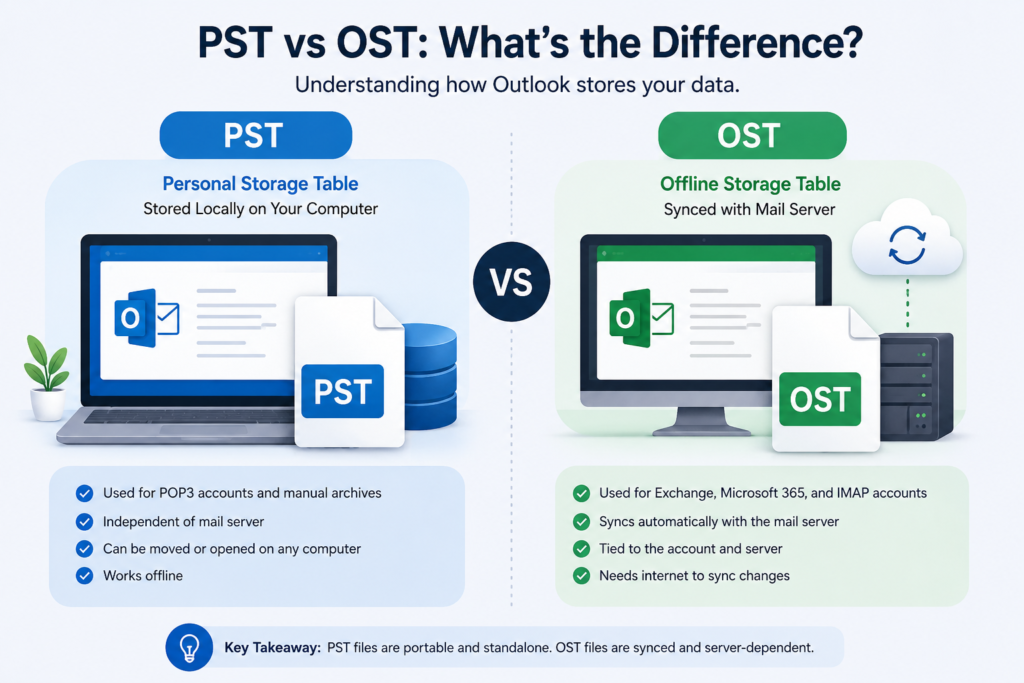
This is one of the most common points of confusion, so it’s worth clarifying directly.
- PST (Personal Storage Table) is used mainly for POP3 accounts and manual archives. It’s independent of the mail server, meaning you can open it even without an internet connection or active account.
- OST (Offline Storage Table) is used with Exchange, Microsoft 365, and IMAP accounts. It syncs automatically with the mail server and acts as a cached copy for offline access.
In short: PST files are portable and standalone, while OST files are tied to a specific mail account and server connection. If you delete the account associated with an OST file, the file becomes essentially useless without repair tools, whereas a PST file can be opened on almost any machine running Outlook.
PST File Size Limits (Updated for 2026)
PST file size limits have changed significantly over the years, and running into the wrong one is a classic cause of the dreaded “Outlook data file has reached the maximum size” error.
- Outlook 97–2002 (ANSI format): roughly 2 GB maximum
- Outlook 2003–2007 (Unicode format): 20 GB maximum
- Outlook 2010 through Outlook 2024 and Microsoft 365 (Unicode format): 50 GB default limit
<cite index=”3-1″>Starting with Outlook 2010 through Outlook 2024 and Microsoft 365, the default limit is 50 GB for both OST and PST files, while earlier versions of Outlook 2007 and below had a 20 GB cap for Unicode files.</cite> If a mailbox approaches this ceiling, <cite index=”3-1″>Outlook may start showing sync errors, slower performance when opening folders, or attempt to compact the data file automatically to free up space.</cite>
It’s technically possible to raise this ceiling. Microsoft allows advanced users to modify two Windows Registry values — MaxLargeFileSize and WarnLargeFileSize — to increase the allowed size. <cite index=”3-1″>These values, both set in megabytes, control the absolute maximum size Outlook will allow and the warning threshold before that limit is reached.</cite> That said, registry tweaks like this should be treated as an advanced fix, not a first resort, since oversized PST files are also more prone to corruption.
Why PST Files Still Matter in 2026
Even with the shift toward cloud-based email like Microsoft 365 and Gmail, PST files remain relevant for a few solid reasons:
- Data portability — you can export a mailbox to PST and move it to a different computer or Outlook profile.
- Compliance and legal holds — many organizations archive email in PST format for record-keeping or e-discovery purposes.
- Backup insurance — a local PST backup means your emails survive even if your Exchange or cloud account has an outage or gets deleted.
- Migration projects — IT teams migrating users between email platforms (like moving from an on-prem Exchange server to Microsoft 365) frequently rely on PST exports as an intermediate step.
Common Mistakes People Make With PST Files
- Ignoring size warnings until it’s too late. Once a PST nears its size cap, performance degrades and corruption risk climbs. Don’t wait for the error message.
- Storing PST files on network drives. Microsoft explicitly discourages this because latency and connection drops can corrupt the file. Keep PST files on a local disk.
- Not backing up before editing the registry. If you’re increasing size limits manually, back up your current PST and export the registry key first.
- Assuming “file size on disk” equals “actual data size.” Outlook doesn’t shrink a PST file automatically after you delete items — it needs to be compacted first.
- Losing track of PST file locations. Because PST files can be created manually, users sometimes lose track of where they’re stored, only to panic later when Outlook can’t find the data file.
Best Practices for Managing PST Files
- Regularly compact your PST file (File > Account Settings > Data Files > Settings > Compact Now) to reclaim disk space.
- Archive old emails into a separate PST rather than letting one file grow indefinitely.
- Keep PST files under roughly 20–25 GB even if the technical limit is 50 GB — smaller files are noticeably more stable and faster to search.
- Password-protect sensitive PST files if they contain confidential business data.
- Use Outlook’s built-in Import/Export wizard rather than copying PST files manually while Outlook is running, since an open file can become locked or inconsistent.
- If a PST becomes corrupted, use Microsoft’s free ScanPST.exe (Inbox Repair Tool) before trying third-party recovery software.
Personal Experience: What I’ve Learned Managing PST Files Over the Years
I’ve worked with Outlook mailboxes across small business and enterprise environments for years, and PST files have caused more late-night troubleshooting sessions than almost anything else in the Microsoft ecosystem.
One thing that stands out from real-world experience: the “file has reached its maximum size” error almost never happens overnight. It creeps up over months, usually because someone kept every single email since 2015 in one giant PST without ever archiving or compacting it. By the time the error shows up, Outlook is already sluggish, search is basically unusable, and the person is understandably panicked because they assume their emails are gone.
The fix is rarely complicated, but it does take patience. In most cases, splitting the PST into smaller archive files by year, then compacting each one, resolves both the size issue and the performance slowdown in a single pass. I’ve also learned the hard way that storing PST files on a shared network drive is a recipe for corruption — Outlook simply wasn’t built for that kind of file access pattern, and even a brief network hiccup during a write operation can leave the file in a broken state.
Another lesson: always run a manual compact after a big cleanup. I’ve seen people delete tens of thousands of old emails, then get confused when the PST file size on disk barely changes. Outlook doesn’t reclaim that space automatically — it has to be told to compact the file, and that step is easy to forget.
If there’s one habit I’d recommend to anyone managing their own mailbox, it’s this: don’t let a single PST file become your entire email history. Archive by year or by project, keep individual files well under the size limit, and back them up somewhere outside of Outlook entirely.
Frequently Asked Questions
1. Where is my PST file located on my computer?
By default, PST files are usually stored under C:\Users\[YourUsername]\Documents\Outlook Files or within the AppData folder, depending on your Outlook version. You can confirm the exact path via File > Account Settings > Data Files in Outlook.
2. Can I open a PST file without Outlook installed?
Not directly — PST is a proprietary Microsoft format, so you generally need Outlook or a specialized third-party PST viewer to open and read its contents.
3. Is it safe to email or upload a PST file to the cloud?
It’s technically possible, but PST files can be quite large and may contain sensitive data, so it’s safer to use Outlook’s export/archive features and store backups on encrypted local or cloud storage rather than emailing the whole file.
4. What causes a PST file to become corrupted?
Common causes include improper shutdowns while Outlook is open, storing the file on a network drive, exceeding size limits, and abrupt power loss during a write operation.
5. How do I convert a PST file to work with a different email client?
Most migration tools and some email providers offer PST import features, or you can use Outlook itself to export mail into formats like .eml or .msg that other clients can read.
6. Does deleting emails automatically reduce PST file size?
No — deleting items frees up internal space within the file, but the file itself won’t shrink on disk until you run Outlook’s “Compact Now” feature.
Conclusion
A PST file might seem like a small technical detail buried in Outlook’s settings, but it plays a big role in how reliably your email, contacts, and calendar data are stored and backed up. Whether you’re dealing with a POP3 account, archiving years of correspondence, or migrating to a new system, understanding how PST files work — and respecting their size limits — will save you from corruption headaches down the road.
Actionable takeaways:
- Check your current PST file size and location today via Outlook’s Account Settings.
- Compact oversized files regularly instead of letting them balloon toward the 50 GB limit.
- Archive old mail into separate PST files by year rather than one massive file.
- Keep backups on local storage, not network drives, to reduce corruption risk.
- If you ever see a size-limit error, address it early — waiting only makes recovery harder.
For deeper technical detail on registry-based size adjustments, see Microsoft’s official Outlook support page and this detailed guide on PST and OST file size limits. If your PST file is already showing errors, running Microsoft’s free Inbox Repair Tool (ScanPST.exe) is a good first step before trying any third-party recovery software.
Explore more tech, software, AI, and digital guides at Aisofting
Disclaimer: This article is intended for general informational purposes only and reflects publicly available guidance as of mid-2026. PST file behavior, size limits, and default settings can vary by Outlook version and organizational policy, so always verify current details through official Microsoft documentation or your IT administrator before making registry changes or handling sensitive mailbox data.